
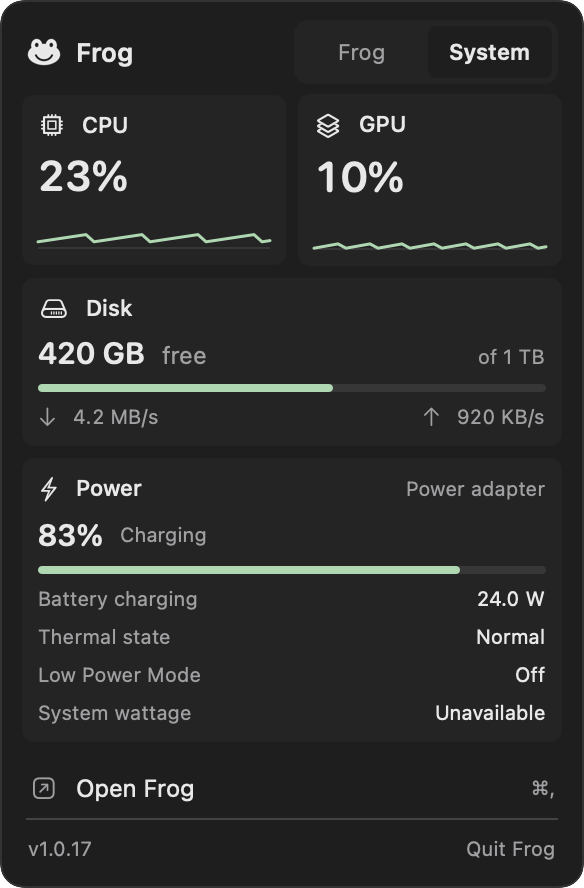
Open the page or the System view
The page and the System view show the same readings; the page draws the graph taller. Disabling the feature removes the page, the Frog/System selector, and the menu-bar item, and stops sampling.
- Turn on System monitor in Features. It is off by default.
- Open System monitor in the sidebar. Its page shows the CPU and GPU graph at full width, Disk and Power side by side below it, and then the Menu bar section.
- Or click Frog’s menu-bar icon and choose System in the popup’s header. Choose Frog to return to the usual controls.
Show CPU and GPU in the menu bar
Turn on Show CPU and GPU in the menu bar, under Menu bar on the System monitor page, to keep CPU above GPU in the menu bar. Choose Steps, Bars, Columns, or Numbers, and Clean, Traffic light, or Spectrum colors; each tile shows the item as it will look. Click the item for the System view. On a Mac whose GPU reports no load, it shows CPU alone.
What the System view shows
A reading that macOS does not provide on your Mac is shown as Unavailable rather than estimated. A Mac without a battery shows its power source instead of a charge level.
- CPU: busy time across all logical cores, as the main line of a graph of the last ten minutes.
- GPU: current utilization as a second line in the same graph, where macOS reports it. Move the pointer over the graph to read both values at that moment.
- Disk: free and total space on the startup volume, plus read and write rates across supported disks.
- Power: battery charge and charging state, battery power in watts, thermal state, and Low Power Mode.
When Frog samples
While System monitor is on, Frog records CPU and GPU load every five seconds, or every two with its menu-bar item on, also with the popup and the page closed, so the graph already covers up to the last ten minutes when you open either. While the page or the System view is visible, all readings refresh every two seconds; disk and power are read only then.
The graph is kept in memory only. It starts empty when Frog launches or when you turn the feature on, and a pause such as sleep stays a gap in the line.
Readings are not saved, exported, or sent anywhere. System monitor needs no Accessibility or Screen Recording permission, no administrator access, and no AI model.